


OCR integration in ERP is the practice of connecting a document-extraction engine to an ERP so that fields read off invoices, purchase orders, receipts, and delivery notes land directly in ERP records. The OCR layer reads the document and returns structured fields; the ERP applies supplier, purchase order, coding, and approval rules. Note that “OCR” here means optical character recognition, not the U.S. Office for Civil Rights, an unrelated meaning that leaks into search through phrases like “OCR audit protocol.”
OCR integration in ERP is how a finance team stops retyping supplier invoices into SAP, NetSuite, or Dynamics and lets the data flow in on its own. Done right, it removes the keystrokes without touching the rules your ERP already enforces.
The core idea is a division of labor: the OCR layer reads the document, and the ERP decides what the document means. This guide covers what that split actually looks like, the four ways the data gets into an ERP, the stage-by-stage flow, where projects break, and how it differs across SAP, NetSuite, Dynamics 365, and the rest.
What OCR Integration in ERP Actually Means
OCR integration in ERP connects an extraction engine to your ERP so document data becomes ERP data without a person keying it. The whole architecture rests on one division of labor, and every later section depends on getting it right.
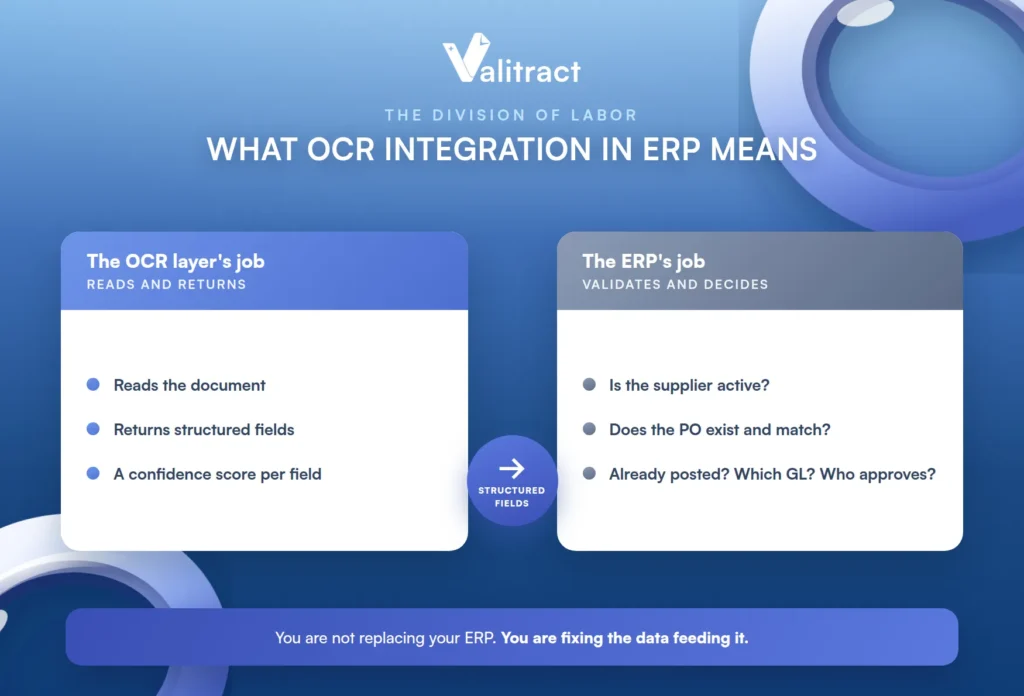
The OCR layer’s job is to read the document and return structured fields, such as supplier, invoice number, dates, line items, quantities, prices, tax, and totals, with a confidence score for each field. That is where its responsibility ends.
The ERP’s job is to decide what those fields mean. Is this supplier active? Does this purchase order exist? Was the quantity received? Has this invoice already been posted? Which GL account applies, and who approves it?
Why the split matters is that nearly every integration failure traces back to one side being asked to do the other’s work. Extraction accuracy (did the tool read the number correctly?) and posting accuracy (did the invoice reach the ledger correctly?) are two different measurements, and confusing them is the root of most disappointment.
The practical framing is that you are not replacing your ERP; you are fixing the data feeding it. For readers who need the layer terminology first, our explainer on the difference between OCR and IDP sets it out.
The Four Ways OCR Data Actually Gets Into an ERP
There is no single way to connect OCR to an ERP, and the right method depends on your ERP, your volume, and your engineering capacity. Most competitor content says “integrate via API” and stops; here are the four real routes.
| Integration method | How it works | Best fit | Main tradeoff |
|---|---|---|---|
| Certified / marketplace connector | Vendor-built app on the ERP’s marketplace, installed inside the ERP | SAP, NetSuite, or Dynamics 365 teams wanting the shortest path to posting | Locked to one ERP; the connector roadmap is not yours |
| Direct REST API | Your code posts the file, receives JSON, writes to the ERP’s API | Engineering teams that own the intake pipeline or run a custom or legacy ERP | You own field mapping, retries, and error handling |
| iPaaS / middleware | Zapier, Make, n8n, or an enterprise layer sits between OCR and ERP | Multiple document sources or entities; teams without spare dev capacity | One more system to monitor; per-run cost at volume |
| Scheduled file exchange | Structured CSV or XLS files dropped on a schedule and imported | Lower volumes, or ERPs with limited inbound APIs | Delayed status; weaker error visibility |
The certified connector is the shortest path when it exists for your ERP, because the vendor maintains the posting logic. The direct REST API gives the most control and suits teams that already own their intake pipeline, at the cost of owning the error handling too.
The iPaaS route fits teams juggling multiple sources or entities without spare developers, trading a little latency and per-run cost for flexibility. The scheduled file exchange is the pragmatic option for lower volumes or ERPs with weak inbound APIs, accepting delayed status in return for simplicity.
The same extraction output can feed any of these paths. Valitract, for example, exposes a REST API at api.valitract.com that returns JSON, CSV, or XLS, plus prebuilt connections to QuickBooks, Xero, Sage, SAP, Zapier, Make, and n8n, so the same output can drive a connector-style, API-style, or file-style path depending on which of the four a team picks.
The OCR-to-ERP Invoice Flow, Stage by Stage
An invoice moves through the same stages regardless of ERP, and at each one the OCR layer and the ERP own different work. Seeing who owns what is what makes an integration debuggable.
| Stage | OCR layer does | ERP does |
|---|---|---|
| Intake | Accepts PDF, scan, photo, or email attachment; preserves the original | Creates or associates an intake record |
| Extraction | Reads header fields and line items; returns confidence per field | Receives the structured data |
| Supplier check | Supplies name, tax ID, and bank details as read | Matches against the vendor master; flags new or changed details |
| PO and receipt matching | Supplies PO number, quantities, and prices | Runs two-way or three-way matching against tolerances |
| Coding | Supplies line descriptions and amounts | Applies GL, cost centre, project, and tax rules |
| Approval routing | Displays the source document beside extracted values | Applies thresholds and records decisions |
| Posting and archive | Retains the document reference | Creates the payable and links the source to the transaction |
The pattern is consistent: the OCR layer reads and presents, and the ERP validates and decides. This is the shape of a healthy accounts payable invoice processing workflow, and it is why extraction quality matters most at the top of the flow, where an early misread propagates all the way to posting.
What OCR Will Not Do Once the Data Reaches Your ERP
Extraction accuracy is not process accuracy. A system can read every field on an invoice perfectly and still produce duplicate payments, wrong GL codes, and stalled approvals, because those are ERP decisions, not reading problems.
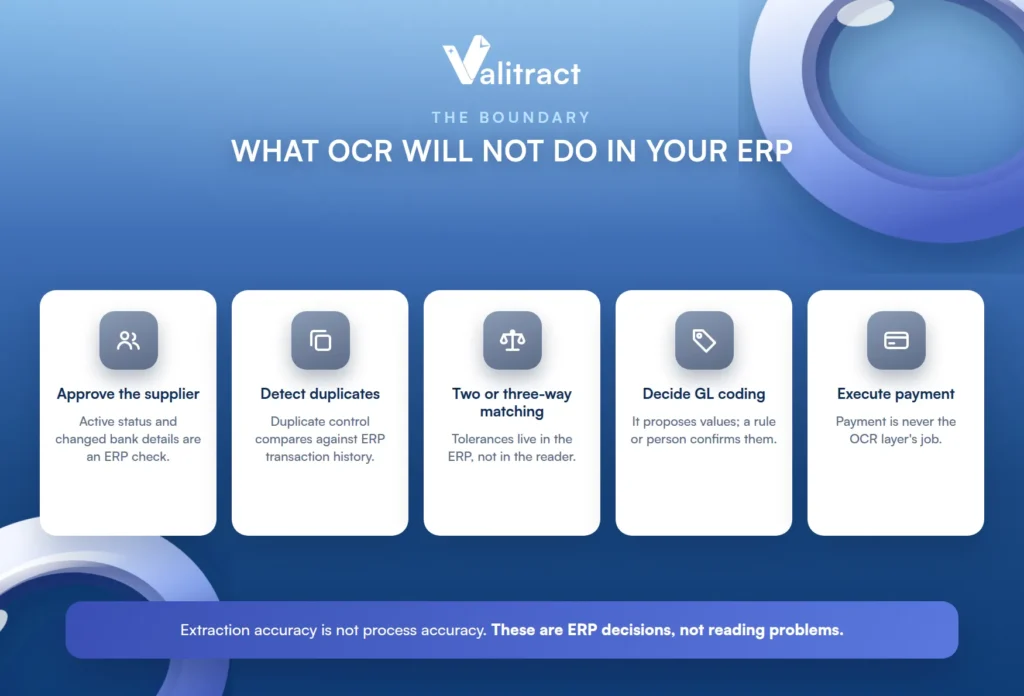
Specifically, an OCR layer on its own does not do the following:
- It does not know whether the supplier is approved, active, or has just changed its bank details.
- It does not detect duplicates by itself, because duplicate control is a comparison against ERP transaction history.
- It does not perform two-way or three-way matching, since tolerances live in the ERP.
- It does not decide GL coding; it only proposes values a rule or a person confirms.
- It does not execute payment.
This is where the boundary needs to be explicit. Valitract is the extraction and validation layer: template-free field, table, and line extraction, with low-confidence flagging and a side-by-side validation view. It does not perform cross-document reconciliation, fraud or tamper detection, live currency conversion, or payment execution; those sit with the ERP or a dedicated AP platform. Getting the extraction and invoice validation right is what lets the ERP do its job well, not a replacement for it.
Field Mapping: Where Most OCR-to-ERP Projects Actually Break
Field mapping is the step most projects underestimate and most SERP content skips entirely. Practitioner threads name the same failures repeatedly: due dates not captured, line-level text dropped, and vendors recognized only when a PO is present. Five decisions prevent them.
Map to your ERP’s field names, not the tool’s defaults. Subsidiary, tax code, cost centre, and approval hierarchy have to match how the team already works in the ERP, or every posted record needs a manual fix.
Decide what happens to line-item detail. Header-only capture is cheap and quietly breaks three-way matching. Confirm the extraction preserves row and column relationships before you scope the project.
Handle multi-entity and multi-currency explicitly. Worldwide vendors mean non-English invoices and foreign-currency amounts. Extraction reads the currency value on the page; normalizing or converting it is a downstream decision, not an OCR feature.
Set confidence thresholds per field, not per document. A low-confidence total is a different risk from a low-confidence line description, and one document-level score cannot tell them apart.
Define what an unmapped field does. It is either held for review or silently dropped, and silent drops are how bad data reaches the ledger unnoticed.
One capability removes a recurring source of mapping pain: template-free extraction. Valitract reads across differing vendor layouts, supports 95+ languages, and preserves table structure, which removes the per-supplier template maintenance that sinks so many projects. That is a statement about the extraction, not a promise about the mapping work itself, which still needs the five decisions above. Our guide to OCR data extraction goes deeper on this layer.
How This Differs by ERP: SAP, NetSuite, Dynamics 365, Oracle, and Everything Else
The right integration route depends heavily on your ERP. Here is where each major platform actually lands, so you can find yours quickly.
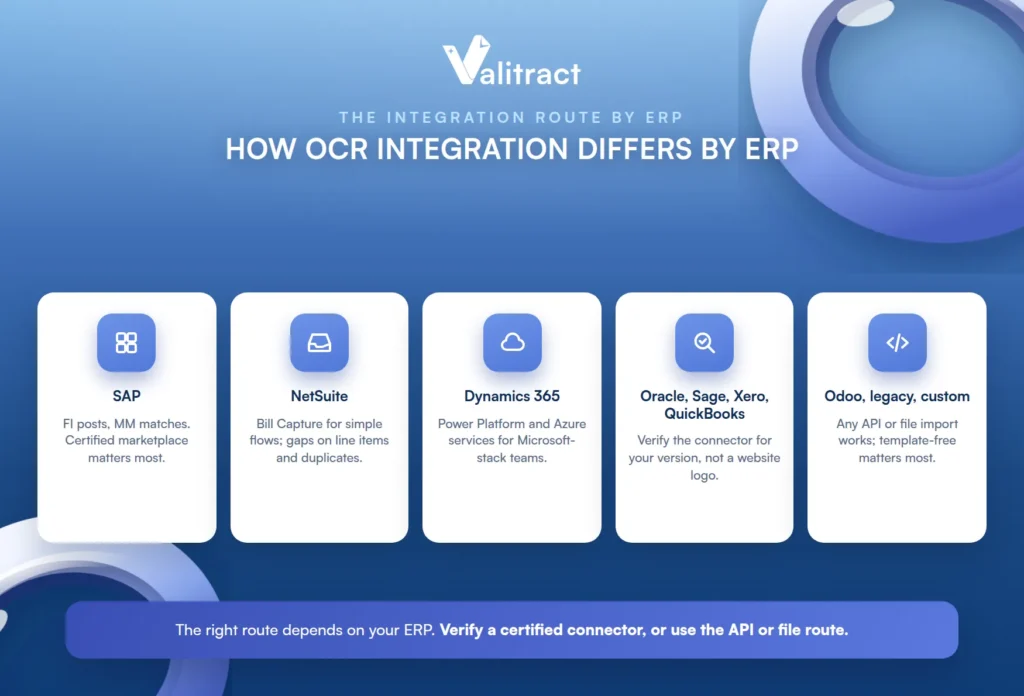
SAP
Native and endorsed options exist alongside third-party connectors, and the practical integration points are the financial accounting module for posting and the materials management module for three-way matching. Certified marketplace listings matter more here than in any other ERP, so confirm a connector is genuinely endorsed rather than merely compatible.
NetSuite
Bill Capture ships in the box and handles simple, low-volume flows, but practitioners consistently report gaps around due dates, line-level text, duplicate alerting, and continuous learning. SuiteApp-native alternatives keep the workflow inside NetSuite, while API-based tools keep the extraction layer portable if you may change ERPs later.
Microsoft Dynamics 365
The Power Platform and Azure-native document services give a low-friction route for teams already inside the Microsoft stack. Third-party connectors compete mainly on line-item depth and on handling non-Microsoft document types well.
Oracle, Sage, Xero, and QuickBooks
Coverage thins as you move down-market: some tools ship prebuilt connectors and others are API-only. Verify the connector exists for your specific product and version before shortlisting, because a vendor logo on a website is not the same as a certified, version-supported integration.
Odoo, legacy, and custom ERPs
Any ERP that accepts an API call or a structured file import can take OCR output. This is where the direct-API and middleware routes do most of the work, and where a template-free extraction layer matters most, because there is no marketplace connector to lean on.
Exception Handling: The Part That Decides Whether Automation Saves Time
An integration that extracts data but leaves every mismatch to be resolved over email has moved the manual work, not removed it. The exceptions are where automation either pays off or quietly fails, so each one needs a defined owner and a clear clearing condition.
| Exception | Typical owner | What must be true before it clears |
|---|---|---|
| Unknown or inactive supplier | AP / supplier management | Vendor record created or reactivated under normal controls |
| Missing PO | Requester or procurement | Purchase confirmed and coded, or a PO raised retrospectively |
| Price mismatch | Procurement or contract owner | Variance inside tolerance, or the PO or invoice corrected |
| Quantity mismatch | Receiving or purchasing | Goods receipt confirms the billed quantity |
| Possible duplicate | AP | Reviewed against posted history, never auto-rejected on one match |
| Changed bank details | Finance control / supplier verification | Verified out of band before payment |
| Low-confidence field | AP clerk reviewing the field | Corrected against the source document in the validation view |
The point of the table is accountability. An exception without a named owner and a defined clearing condition is an exception that sits unresolved, which is exactly how automation earns a reputation for making things slower rather than faster.
Beyond Supplier Invoices: Other Documents Worth Routing Into the ERP
Invoices are the usual starting point, but many other documents can feed the same ERP. A scoping warning first: every document type adds its own fields, validation rules, ownership, and retention requirements, so adding all of them in phase one usually costs more than it returns.
- Purchase orders and order confirmations, which pair naturally with invoice matching; see our guide to purchase order automation.
- Delivery notes and packing slips, for receipt confirmation.
- Credit notes, which follow different posting logic than invoices.
- Expense receipts, often photographed rather than scanned.
- Bank statements, for reconciliation feeds.
- Contracts, for payment terms and renewal dates.
- Delivery and warehouse documents where handwritten annotations are normal, which is where handwriting recognition matters.
The discipline is to prove one high-volume document type first, then add the next. Each addition is a small project of its own, not a free extension of the first.
How to Test an OCR Layer Against Your Real Document Mix
The natural decision point is a test on your own documents, not a vendor demo. Frame it as a protocol, and run it before any integration work is scoped.
- Pull 20 to 30 invoices from your actual vendor base, deliberately including the ugly ones: skewed scans, phone photos, multi-page line-item runs, non-English suppliers, and foreign currencies.
- Measure field-level accuracy separately for header fields and line items, because a strong header score hides weak table extraction.
- Check what the tool does when it is unsure: does it flag the field, guess silently, or fail the document?
- Confirm the output format your ERP import or API actually wants (JSON, CSV, or XLS) before you evaluate anything else.
- Time the round trip end to end, not just extraction, because extraction in seconds means nothing if posting is a nightly batch.
- Read the data-retention policy, since supplier bank details and tax IDs are in scope.
A free tier is enough to run exactly this test. Valitract’s is 100 pages a month with no credit card, which covers a real 20-to-30 invoice trial on your own mix before any integration work is scoped. For the direct-API route, see our invoice OCR API guide, and for the end-to-end workflow context, our overview of automated invoice processing.
Common Mistakes in OCR ERP Integration
A handful of mistakes account for most failed integrations. Each is avoidable once named.
The first is automating on top of dirty master data, where duplicate vendor records and stale GL mappings mean the ERP cannot validate anything the OCR sends it. The second is judging a tool on a clean demo PDF instead of the documents your suppliers actually send.
The third is rolling out AP, HR, logistics, and legal documents simultaneously instead of proving one high-volume type first. The fourth is extracting every visible field “because it is there,” when each captured field adds mapping, testing, and maintenance cost.
The fifth is treating extraction accuracy and straight-through processing rate as the same number. The sixth is skipping human-in-the-loop thresholds, so unverified low-confidence values post without anyone seeing them. The seventh is assuming a vendor’s ERP logo on a website means a certified, version-supported connector.
Metrics Worth Tracking After Go-Live
The right metrics are leading indicators of whether the integration is working, not a reporting exercise. Seven are worth watching.
Track the straight-through processing rate (the share of invoices posted with no human touch) and invoice cycle time from receipt to posting. Break out the exception rate by exception type and owning department, and track the manual correction rate on extracted fields separately for headers and line items.
Watch duplicate warnings raised versus duplicates confirmed, approval turnaround time, and cost per processed invoice. Together these show whether automation is genuinely removing work or just relocating it.
Frequently Asked Questions About OCR Integration in ERP
What is OCR integration in ERP?
It is connecting a document-extraction engine to an ERP so that data read off invoices, POs, and receipts lands directly in ERP records. The OCR layer reads the document and returns structured fields with confidence scores, and the ERP applies its supplier, matching, coding, and approval rules. It fixes the data feeding the ERP rather than replacing the ERP.
How does OCR connect to an ERP system?
Through one of four routes: a certified marketplace connector, a direct REST API, an iPaaS or middleware layer, or a scheduled structured-file exchange. The right choice depends on your ERP, your volume, and whether you have engineering capacity to own the integration. Many teams combine routes across multiple systems.
Can OCR post invoices into an ERP automatically?
Yes, for invoices that pass the ERP’s validation rules, extracted fields can post straight through with no human touch. Anything that fails a rule, such as a missing PO or a price mismatch, is routed as an exception. The OCR layer supplies the data; the ERP decides whether it can post.
Does OCR handle three-way matching, or does the ERP?
The ERP does. Three-way matching compares the invoice, purchase order, and goods receipt against tolerances that live in the ERP, not in the OCR layer. The OCR layer supplies the PO number, quantities, and prices it read; the matching itself is an ERP function.
Is built-in ERP OCR enough, or do you need a third-party tool?
Built-in capture, like NetSuite Bill Capture, handles simple, low-volume flows well. Teams often add a third-party tool when they need stronger line-item extraction, multi-language support, duplicate alerting, or portability across ERPs. Test the built-in option on your real document mix before deciding.
How accurate is OCR for invoices in a production ERP workflow?
Accuracy is high on clean, standard invoices and lower on skewed scans, photos, and non-English documents, so the number that matters is field-level accuracy on your own mix. Measure header fields and line items separately, because a strong header score can hide weak table extraction. Confidence scoring plus human review is what keeps production accuracy reliable.
What happens when extracted data does not match ERP records?
It becomes an exception with a defined owner and a clearing condition, such as an unknown supplier routed to AP or a price mismatch routed to procurement. Well-designed workflows give every exception a status and a resolution history. Poorly designed ones leave mismatches to be resolved over email, which relocates the manual work instead of removing it.
Can OCR read invoices in other languages and currencies?
Modern template-free tools read many languages and capture foreign-currency amounts as they appear on the page. Normalizing or converting currency, however, is a downstream ERP or finance decision, not an OCR feature. Confirm both the language coverage and how currency is handled before you rely on it.
Conclusion
OCR integration in ERP works when each layer does its own job: the OCR layer reads the document and flags what is uncertain, and the ERP validates, matches, codes, and posts. Most failures come from blurring that line, so the discipline is to fix the data feeding the ERP without asking the extraction layer to make decisions that belong to the ERP.
Start by testing an extraction layer on your own worst invoices, map fields to how your ERP already works, give every exception an owner, and prove one document type before adding the next. Get those right, and the keystrokes disappear while the controls stay exactly where they belong.