


- To convert a PDF bank statement to Excel, first check whether the PDF is text-based or scanned, then pick the matching method: Excel’s built-in Power Query import for clean, text-based statements, or an AI extraction tool for scanned, multi-page, or multi-bank batches.
- Do the one step nearly every tutorial omits: reconcile the extracted rows against the statement’s printed closing balance before you use the file.
Learning how to convert a PDF bank statement to Excel is really two questions in one: which method your specific PDF can even use, and how to know the output is correct before you trust it. Most tutorials answer neither well, so they leave you with a file that looks fine and quietly dropped a page.
This guide fixes both. It starts with the 30-second check that decides your method, walks through all four conversion routes with exact steps, and ends with the arithmetic that tells you whether the conversion actually worked.
Before You Convert: Is Your PDF Text-Based or Scanned?
The single fact that decides which methods can work at all is whether your PDF is text-based or scanned, so check that first. It takes one second and saves an hour of trying tools that were never going to work.
The one-second test: open the PDF and try to select a transaction line with your cursor. If the text highlights, it is a text-based (native) PDF; if nothing highlights, it is an image and needs OCR before any converter can read it.
Text-based PDFs work with Power Query, free online converters, and AI tools alike, so you have every option open. Scanned PDFs, phone photos, and faxed statements rule out Power Query and most free converters entirely, because those return a blank table or a garbled stream of text.
Two more variables shape the right answer once you know the PDF type. The first is volume: one statement and a stack of 40 across three banks are different problems with different best answers. The second is destination: Excel for your own analysis is forgiving, while Excel or CSV as a staging file for QuickBooks or Xero has strict column rules covered later in this guide.
The 4 Ways to Convert a Bank Statement PDF to Excel
Before the step-by-step methods, here is the whole landscape in one view so you can place your own situation in seconds.
| Method | Works on scanned PDFs | Cost | Best for |
|---|---|---|---|
| Excel Power Query (built-in) | No | Free (Microsoft 365) | One or two clean, text-based statements from a single bank |
| Free online PDF-to-Excel converter | Sometimes | Free / freemium | A single statement, non-sensitive, quick one-off |
| AI bank statement extraction tool | Yes | Free tier to paid | Scanned statements, multi-page runs, mixed bank formats, batches |
| Extraction API in a pipeline | Yes | Usage-based | Recurring or high-volume conversion inside an existing workflow |
Each method below follows the same pattern, namely how it works, the steps, and where it breaks, so you can read only the one that fits your situation.
Method 1: Convert a PDF Bank Statement Using Excel Power Query
Power Query is the right first stop for one or two clean, text-based statements, because it is free and already built into Microsoft 365. Most tutorials show the happy path and skip the caveats, so here are both.
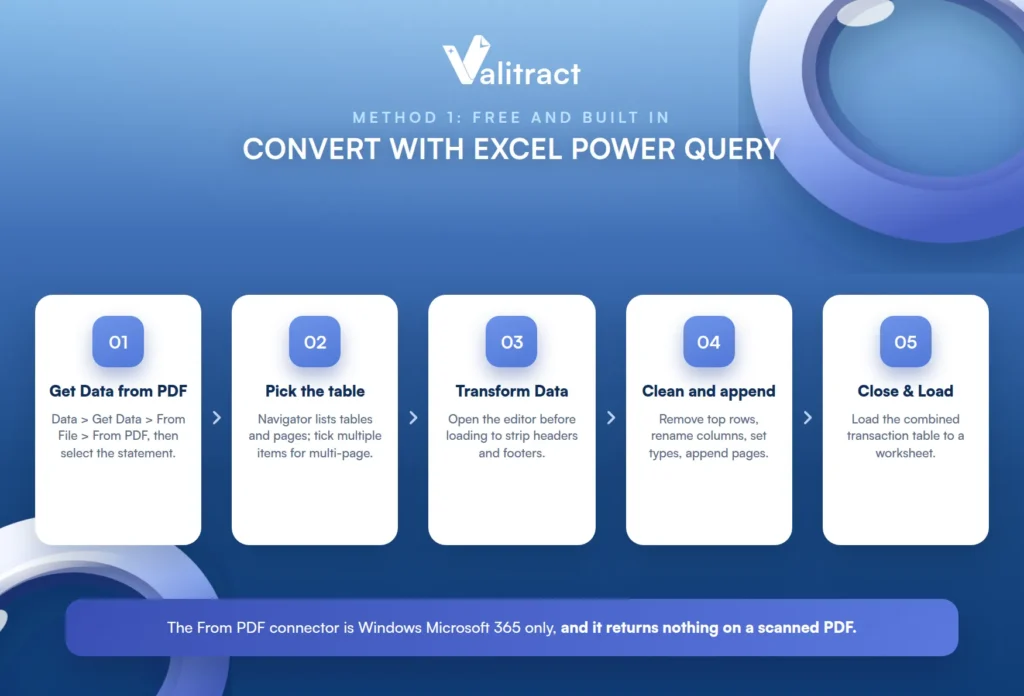
The steps are short. Go to Data > Get Data > From File > From PDF, select the statement, and Excel opens the Navigator dialog. The Navigator lists the detected Tables and Pages, so preview each one and select the transaction table, ticking “Select multiple items” when the statement runs across several pages.
Click Transform Data to open the Power Query Editor rather than loading directly, which lets you strip header rows, footers, and marketing pages before anything reaches the sheet. In the editor, remove the top rows, rename the columns, set data types on the date and amount columns, and Append the per-page tables into one. Then Close & Load to a worksheet.
Where it breaks is worth stating plainly, because these are the exact points the tutorials omit. The From PDF connector is Windows Microsoft 365 only, so it is absent on Mac and older Excel builds. It returns nothing on scanned PDFs. Multi-line transaction descriptions get split across rows. And statements that use tabs or spacing rather than a true table structure produce inconsistent column detection.
There is a scaling wall too. Each page can land as a separate query, which becomes unmanageable past a handful of statements, and a Power Query workflow tuned to one bank often has to be rebuilt for the next bank’s layout. That is exactly why it stops scaling the moment more than one format is involved.
Method 2: Free Online PDF to Excel Converters
Generic PDF-to-Excel tools like Adobe Acrobat online, iLovePDF, and Zamzar extract whatever table structure exists in the file. They are the fastest option for a single clean statement and need no setup at all.
The catch is that a generic converter extracts the page, not the transaction model. Column alignment often survives, but debit and credit separation, the running balance, and multi-line descriptions frequently do not, which leaves you repairing structure by hand.
Bank-specific free converters exist and generally handle statement layouts better than generic ones, though most cap free usage at a page count or watermark the output. They are a reasonable middle ground for a one-off from a common bank.
The privacy point belongs here, not in a footnote. A bank statement contains account numbers, balances, and the account holder’s name, so for client documents you should check the tool’s retention policy before uploading and delete the converted files from the service afterward.
One route deserves a single sentence naming it as the thing not to do: converting the PDF to Word and pasting into Excel collapses the columns, and it is the single most common source of the “the structure gets messed up” complaint in community threads.
Method 3: AI Bank Statement Extraction Tools (Scanned, Multi-Page, Multi-Bank)
This category exists specifically because Methods 1 and 2 fail on scanned statements and mixed formats. If your test in the first section showed a scanned PDF, or you are processing many banks at once, this is where you start.
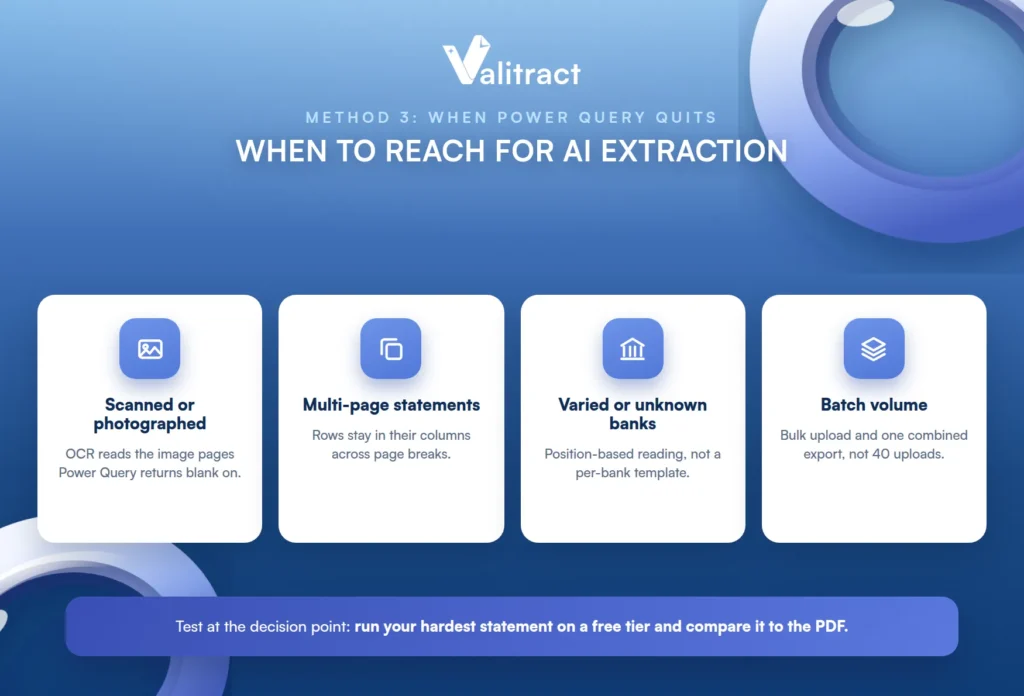
The way it differs is architectural: an OCR layer reads the image-based pages, and a model identifies transaction rows by their position on the page rather than by a per-bank template. That is what keeps date, description, debit, credit, and running balance in their own columns across layouts the tool has never seen.
Valitract is one option here, with template-free extraction across bank layouts, structured XLS, CSV, or JSON output, and a free tier at 100 pages a month for testing before committing; our guide to bank statement data extraction goes deeper. It is not the only one, and the honest framing names alternatives by fit: DocuClipper and Lido lean toward accounting-workflow output like QBO and OFX files and Xero-ready CSV, while Nanonets and Docsumo serve broader document workflows. Our overview of bank statement extraction software compares the field.
Handwritten annotations and handwritten ledger-style statements deserve their own mention, because they are common in older or small-institution documents and are the clearest case where OCR quality alone decides the outcome; see handwriting recognition. And batch behavior is the practical deciding factor: converting 40 statements one at a time through a web form is no faster than Power Query, so bulk upload with a single combined export is what actually changes the time cost.
The cheapest way to choose is to test at the decision point. Upload one of your own hardest statements, the scanned one or the bank whose layout keeps breaking, on a free tier and compare the output against the PDF before you commit to anything.
Method 4: Automating the Conversion With an Extraction API
If statements arrive on a schedule rather than one at a time, the manual upload is the wrong shape entirely. An extraction API removes the person in the middle.
It is worth automating when statements land on a recurring cadence, arrive in a shared drive or inbox, or need to reach a spreadsheet or ERP without manual handling. The shape of the flow is simple: the file goes in through a REST endpoint, structured JSON comes out, and it is mapped to columns and written to the destination sheet or system.
Teams without engineering time can build the same thing with no-code tools, using Zapier, Make.com, or n8n to trigger on a new file in a watched folder; our guide to automated bank statement processing covers the patterns. Whichever route you take, keep a human in the loop by routing low-confidence fields to review rather than writing every extracted row straight through.
Cleaning the Excel File After Conversion
Most tutorials end at “download your Excel file,” which leaves you with a file that is not usable yet. These six cleanup steps are what turn raw output into data you can sort, sum, and import.
| Cleanup step | What to fix | Why it matters |
|---|---|---|
| Header and footer rows | Delete bank marketing text, page numbers, and repeated column headers from each page | Repeated headers break sorting, filtering, and every downstream import |
| Date column | Convert to one consistent date format; split off any weekday text the bank appends | Mixed formats silently sort wrong and fail import validation |
| Amount columns | Strip currency symbols and thousands separators; decide on signed Amount versus separate Debit/Credit | Text-formatted numbers will not sum |
| Multi-line descriptions | Merge continuation rows back into the transaction they belong to | Orphan rows inflate transaction counts and break reconciliation |
| Running balance column | Keep it for verification, remove it before any accounting import | Import tools read it as a transaction amount |
| Blank and zero cells | Leave true zeros blank in Debit and Credit columns | Some importers read zeros as real transactions |
The running-balance row is the one people most often get wrong in both directions: you want it while you verify the file, and gone before you import it.
How to Verify the Conversion Before You Trust It
Accuracy is claimed everywhere and verified almost nowhere, so this is the step that separates a usable file from a plausible-looking one. It takes two minutes and it is not optional.
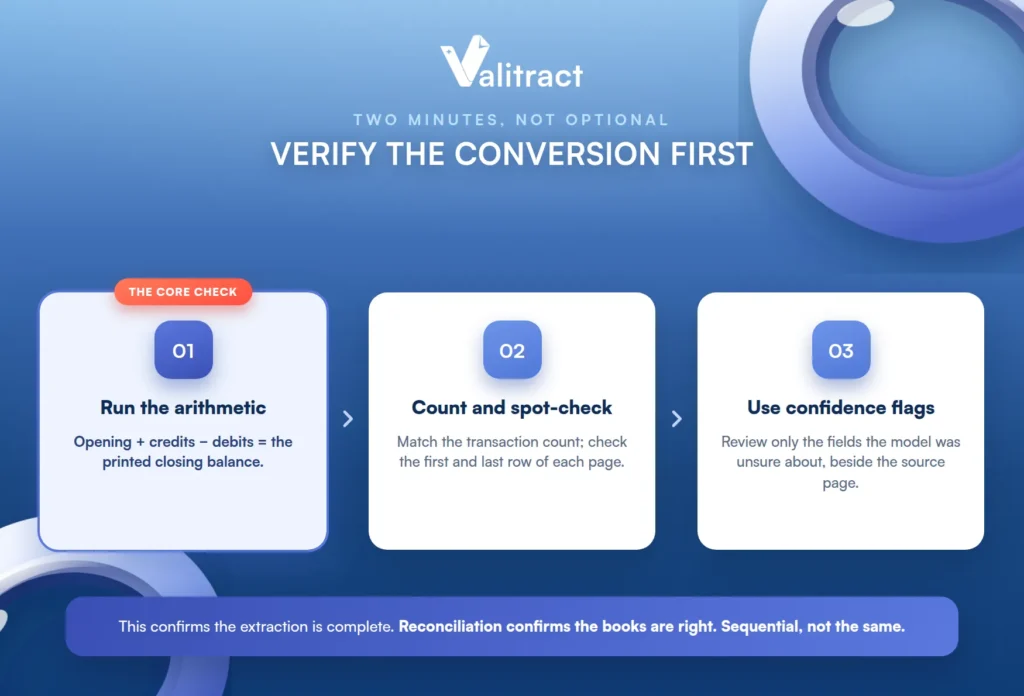
The core check is arithmetic: opening balance plus total credits minus total debits should equal the printed closing balance. If it does not, a row was dropped, duplicated, or misread, and no amount of accuracy marketing substitutes for running the sum yourself.
Back that up with a count and a spot check. Compare the transaction count against the statement where the bank prints one, and spot-check the first and last row of every page, because page boundaries are where rows most often go missing.
This is where tooling earns its place. Confidence flagging and a side-by-side view of the source page against the extracted rows turn verification from a full re-read into a review of the handful of fields the model was unsure about, which is what Valitract’s validation view is for and the same idea behind DocuClipper’s balance-reconciliation check.
One distinction keeps the vocabulary straight. This check confirms the extraction is complete; month-end bank statement reconciliation matches statement transactions against your books to confirm the books are right. They are sequential, not interchangeable.
Preparing the File for QuickBooks or Xero Import
For many readers the real goal behind converting a statement is getting it into QuickBooks, and that has stricter rules than a spreadsheet does. Get the format right and the import is a non-event.
QuickBooks Online accepts either a three-column file (Date, Description, Amount, with negatives for money out) or a four-column file (Date, Description, Credit, Debit), but not the two patterns mixed and not with a balance column present. Beyond that, a few constraints are worth stating outright: CSV uploads are capped at roughly 1,000 transaction lines and a small file size, so long statement runs must be split by date range, dates must be consistently formatted, and numbers should be removed from the Description column.
QuickBooks Online can now also accept a bank statement PDF or image directly and extract it, which is worth naming honestly. For a single statement straight into QBO, that may be the shortest path; it does not help for Excel analysis, Xero, batch runs, or any workflow that needs the spreadsheet itself. Xero, for its part, uses its own Import a Statement workflow and prefers OFX or a mapped CSV.
The capability boundary belongs here, stated plainly. Valitract exports XLS, CSV, and JSON and integrates with QuickBooks, Xero, and Sage, but it does not generate QBO or OFX bank-feed files. If a one-click .qbo import is the actual requirement, that is a different tool layer, and DocuClipper or Lido are the honest recommendation; our guide to bookkeeping automation tools covers that category.
Common Mistakes When Converting Bank Statements to Excel
A handful of mistakes account for most of the wasted afternoons, and each is avoidable once named.
The first is testing a tool on one clean sample instead of the messiest file in the actual mix, the scanned one, the 60-page one, the foreign bank. The second is copying through Word or the clipboard, then spending longer repairing column alignment than manual entry would have taken.
The third is skipping the balance check and discovering a dropped page weeks later, mid-reconciliation. The fourth is treating extraction accuracy as workflow accuracy, since a correctly extracted row in the wrong column format still fails at import.
The fifth is uploading client statements to a converter without checking its retention policy. The sixth is expecting the converter to categorize: extraction produces structured transactions, not a categorized ledger or a fraud assessment, and categorization, credit decisioning, and tamper detection are a separate tool layer that Valitract does not perform, and neither do the generic converters in Method 2.
Frequently Asked Questions
How do I convert a PDF bank statement to Excel?
Check whether the PDF is text-based or scanned, then pick the matching method: Excel Power Query for clean text-based statements, an AI extraction tool for scanned or multi-bank batches. After converting, reconcile the extracted rows against the printed closing balance before using the file. That final check is what catches a dropped or misread row.
Can Excel open a PDF bank statement directly?
Yes, on Windows Microsoft 365, through Data > Get Data > From File > From PDF, which uses Power Query to pull tables out of a text-based PDF. It does not work on Mac or older Excel versions, and it returns nothing on scanned or image-based statements. For those you need an OCR-based AI extraction tool instead.
How do I convert a scanned bank statement to Excel?
A scanned statement is an image, so it needs a tool with OCR built in; Power Query and most generic converters return blank or garbled output. An AI bank statement extraction tool reads the image, identifies the transaction rows, and exports structured XLS or CSV. Always verify the result against the printed closing balance, since scan quality affects accuracy.
Is there a free way to convert bank statements to Excel?
Yes. Excel Power Query is free with Microsoft 365 for clean text-based statements, generic converters like iLovePDF and Zamzar have free tiers, and several AI extraction tools offer a free monthly page allowance. The free route that fits depends on whether your PDF is text-based or scanned and how many statements you have.
Why does my converted bank statement come out with the columns misaligned?
Usually because the PDF stores the values as spatially positioned text with no true table structure, so the converter guesses the columns from spacing and gets it wrong. Copying through Word or the clipboard makes this far worse by collapsing columns entirely. A position-aware AI extraction tool handles misaligned layouts more reliably than a generic converter.
How do I convert a Chase or Bank of America statement to Excel?
The method depends on the file, not the bank: if the statement is a text-based PDF, Power Query or a converter works; if it is a scan or download image, use an AI extraction tool. Layouts differ between banks and even between account types, which is why template-free extraction handles a mixed set better than a per-bank recipe. Verify the closing balance regardless of bank.
Can ChatGPT convert a PDF bank statement to Excel accurately?
An LLM can extract transactions and adapt to varied layouts, but it can also produce a clean-looking but wrong value rather than failing visibly, which is risky for financial data. If you use one, treat the output as a draft and run the opening-plus-credits-minus-debits check against the printed closing balance. For recurring or high-volume work, a purpose-built extraction tool with confidence flagging is safer.
How do I get a converted bank statement into QuickBooks?
Format the file as a three-column (Date, Description, Amount) or four-column (Date, Description, Credit, Debit) CSV, remove the balance column, use a consistent date format, and split runs over about 1,000 lines. QuickBooks Online can also accept a statement PDF directly for a single statement. For one-click .qbo files, a dedicated tool like DocuClipper or Lido generates the bank-feed format.
Is it safe to upload bank statements to an online converter?
It depends on the service’s security and retention policy, so check where files are stored, for how long, and whether they are used for model training before uploading anything sensitive. For client documents, delete the converted files from the service afterward. Teams with strict data policies should prefer a tool with a clear retention policy or an on-premise option.
Conclusion
Converting a PDF bank statement to Excel comes down to two decisions the tutorials rush past: match the method to whether your PDF is text-based or scanned, and verify the output against the printed closing balance before you trust it. Power Query is the free answer for a clean statement or two, generic converters suit a quick one-off, and AI extraction earns its place on scans, batches, and mixed bank formats.
Whichever route fits, the arithmetic check is the step that turns a plausible-looking spreadsheet into one you can actually reconcile. Do that, and a folder of statement PDFs becomes clean Excel data, without the dropped page you only find weeks later.